
Integrations
The Integrations panel connects your Dazl project to external services. It has two tabs: Integrations for MCP connections to external platforms, and Add-ons for library recipes.
The Integrations panel connects your Dazl project to external services. It has two tabs: Integrations for MCP connections to external platforms, and Add-ons for library recipes (covered in a separate article).
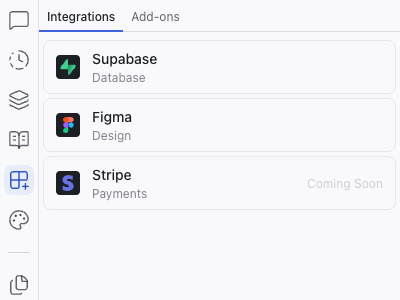
Available Integrations
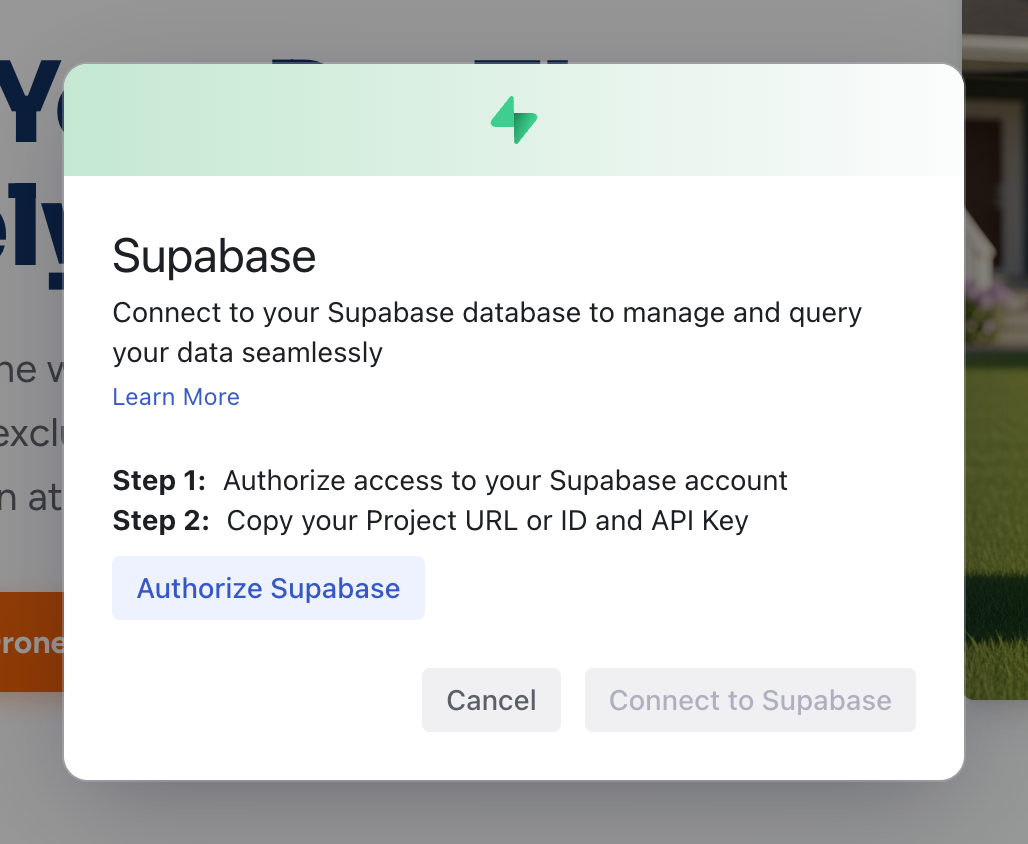
Supabase
Connects your project to a Supabase backend for:
- Database – store and query data
- Authentication – user sign-up, login, and session management
- Storage – file and asset management
Once connected, the AI can create database-backed features, authentication flows, and data-driven pages. You can also create a new Supabase project directly from Dazl after connecting your account. Learn more at supabase.com.
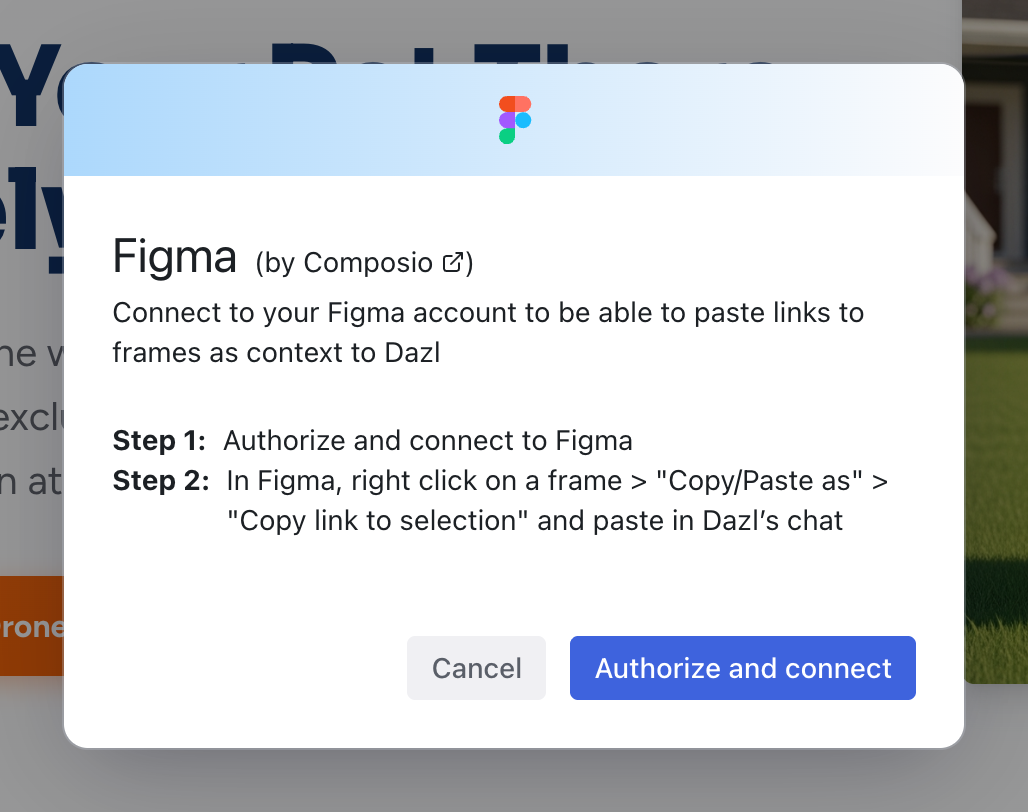
Figma
Import frames and designs from Figma directly into Dazl. The AI uses the design as a reference to generate working code that matches your layout and styling. Learn more at figma.com.
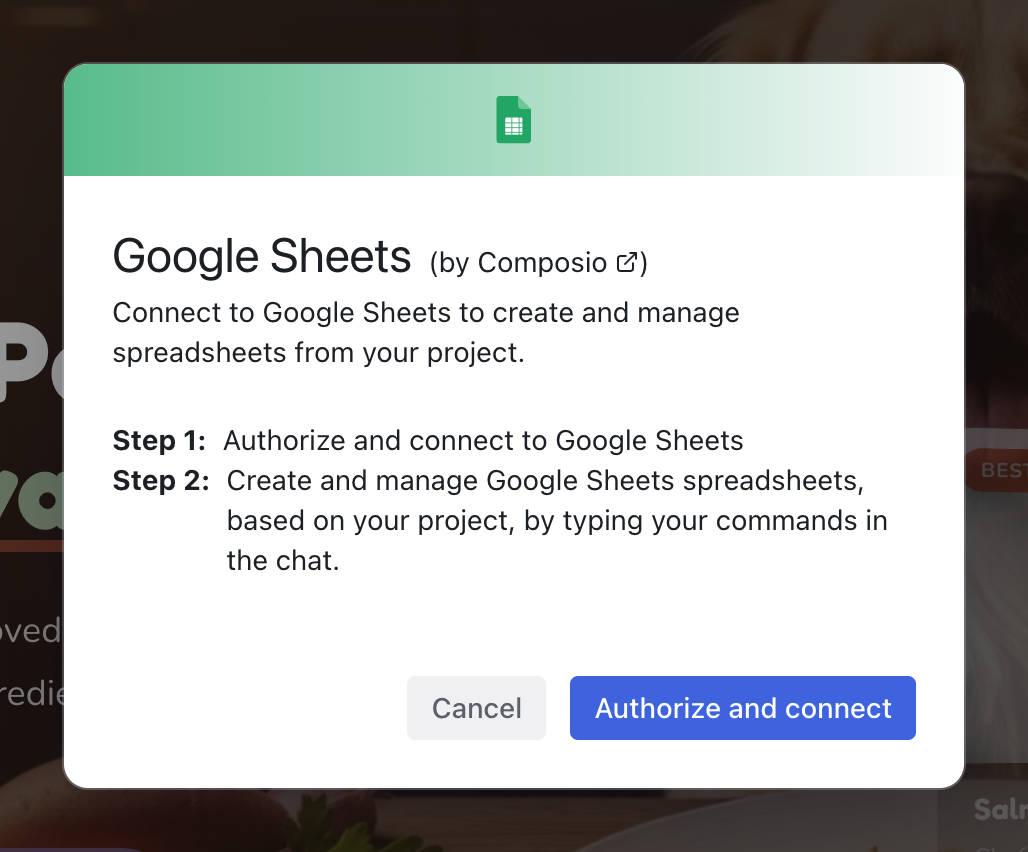
Google Sheets
Connect a Google Sheets account to read spreadsheet data into your project or create new spreadsheets from your project's content. For example, import a product catalog to populate a listing page, pull in user research data to build a dashboard, or export a feature comparison table from your prototype.
Google Docs
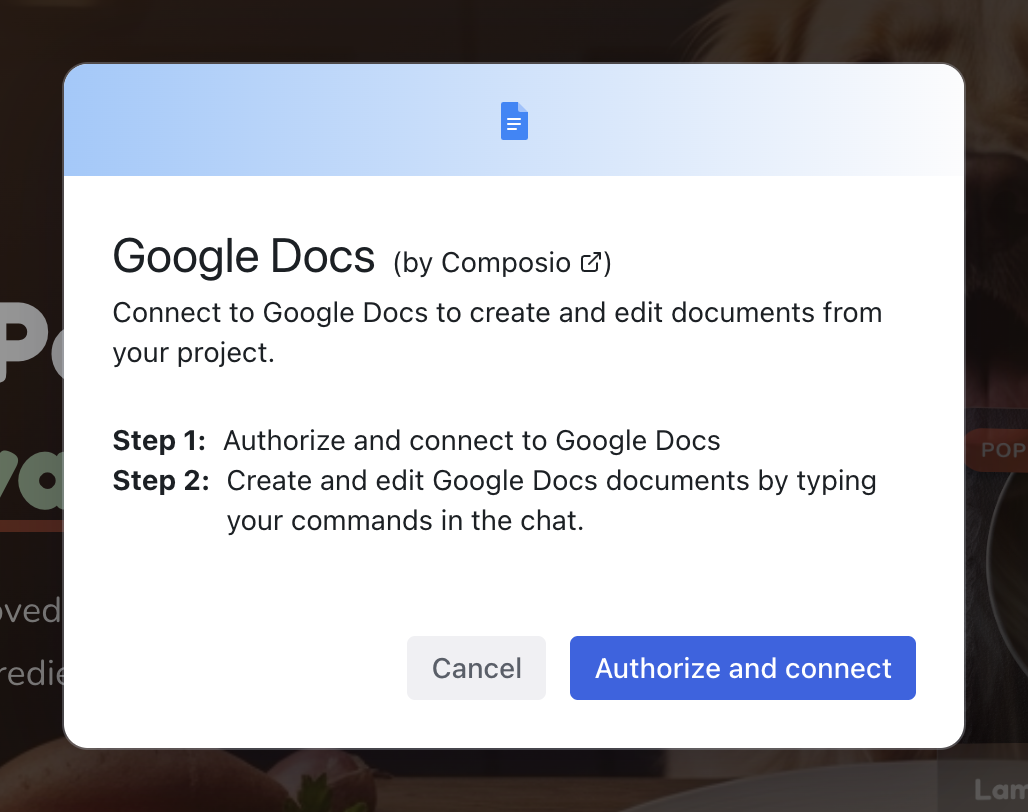
Connect a Google Docs account to pull in document content as reference or create new documents from your project's content. For example, feed a PRD into the chat so the AI builds to spec, import landing page copy from a shared doc, or generate a handoff document describing what was built.
Google Slides
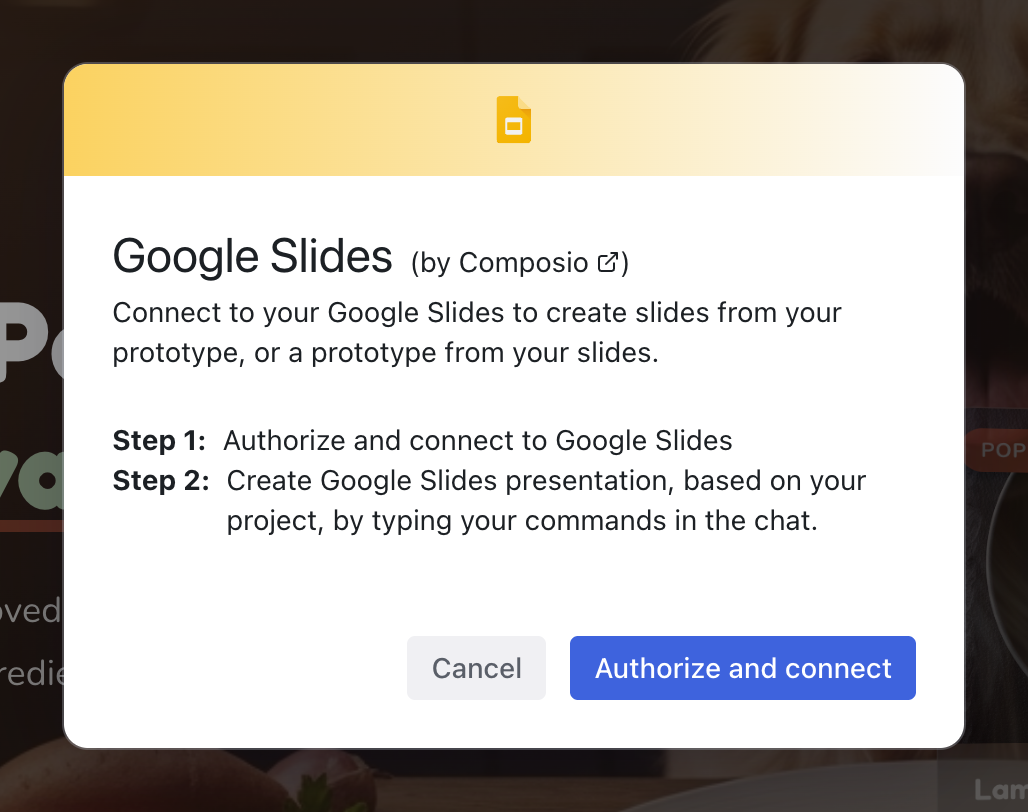
Connect a Google Slides account to reference presentation content or create new slides from your project. For example, reference a pitch deck for design direction, or generate a stakeholder update with screenshots and descriptions of what you've built.
Custom MCP
Click Add Custom MCP at the bottom of the Integrations list to connect your own MCP server or a third-party MCP service.
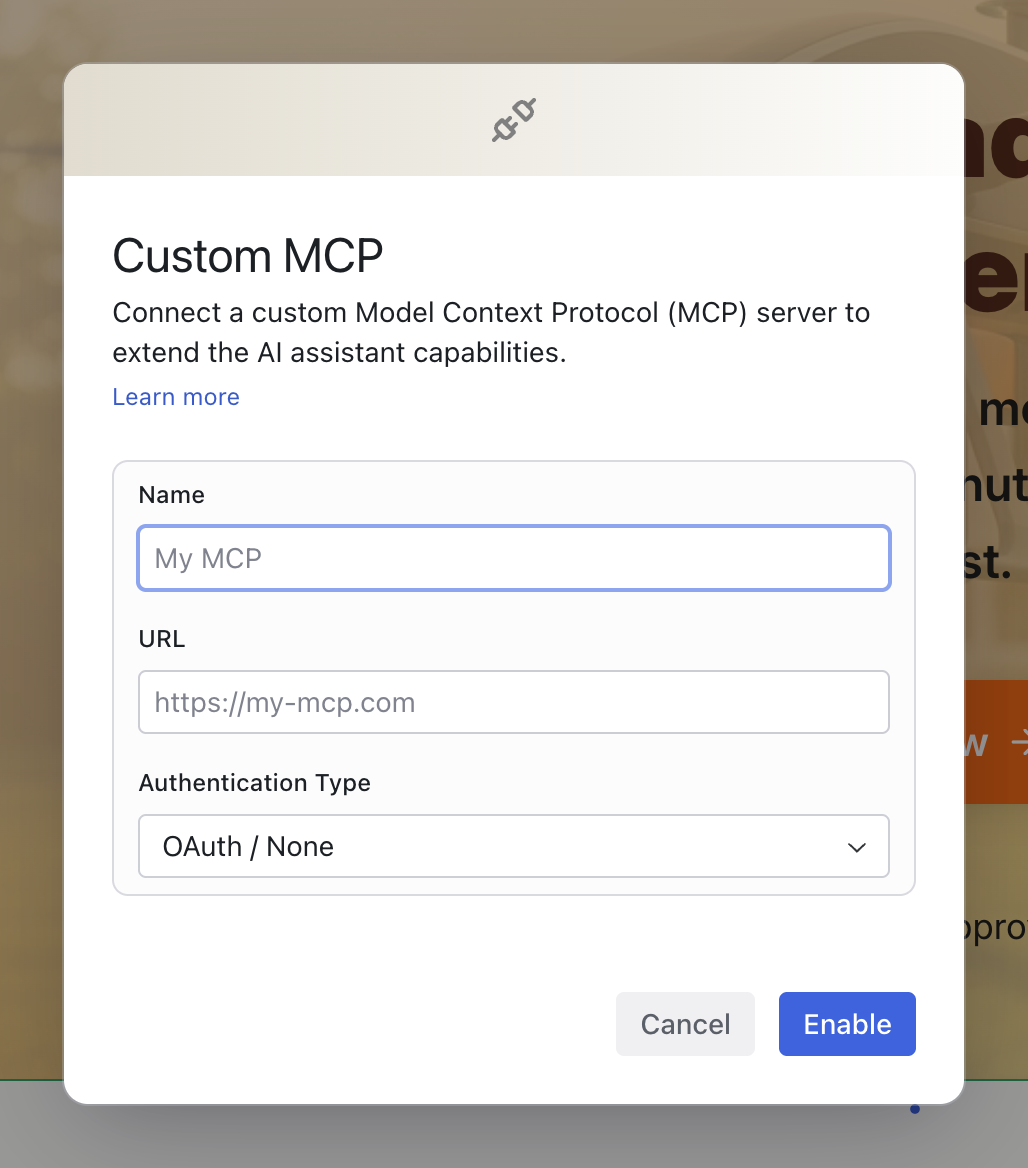
Provide:
- Name — a label for the integration (shown in the Integrations panel)
- URL — the MCP server endpoint
- Authentication Type — choose OAuth / None, Bearer, or Headers depending on how the server authenticates
Click Enable to connect. Once enabled, the AI can use the tools and resources provided by your MCP server when making changes to your project.
Toggling Integrations from Chat
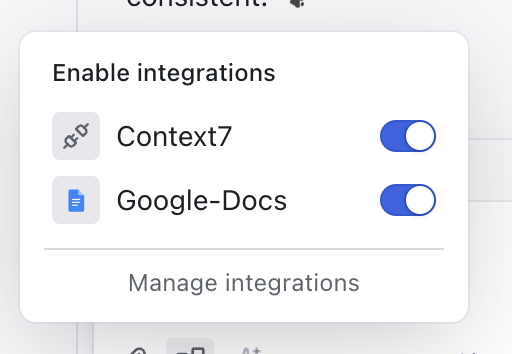
You can enable or disable integrations without leaving the Chat panel. Click the MCP toggles button in the prompt box to open a popover listing all connected servers with on/off switches.
Related Articles
- Starting a Project – all the ways to begin a new project
- Add-ons – library integrations (different from MCP integrations)
- Pages and Routing – dynamic pages powered by Supabase data
Skills
Skills are markdown files that give the AI specialized knowledge for specific tasks. They appear in a dedicated section of the Specs panel.
Add-ons
Add-ons are pre-built recipes that help install and configure libraries in your project. They live in the Add-ons tab within the Integrations panel, and handle the initial setup steps (installing packages, creating configuration files, adding boilerplate) so you can start using a library without deep technical knowledge.