
Specs
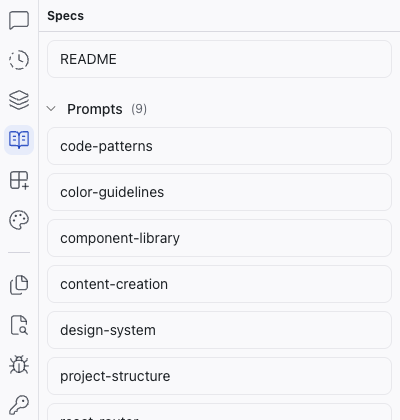
The Specs panel is a file browser for your project's specification files: markdown documents that guide the AI's behavior when generating and modifying code.
The Specs panel is a file browser for your project's specification files: markdown documents that guide the AI's behavior when generating and modifying code.
What's in the Specs Panel
The panel surfaces four types of content:
- Skills – markdown files that give the AI specialized knowledge for specific tasks, such as brand voice or accessibility standards. See Skills for details.
- System prompts – the
Prompts/folder ships with every project. These define how the AI behaves, covering coding conventions, design tokens, component structure, routing patterns, and more. - Spec documents – any markdown files you create to describe what you're building: feature specs, design direction, technical constraints, or a project README.
- Content files – markdown files that are part of the project itself, like individual blog posts, help articles, or landing page copy.
Creating Specs
Click + New to create a spec from a blank file or a built-in template (PRD, User Flow, Technical Design, Agent Instruction). You can also create a custom template or a skill from the same menu.
Custom Templates
Enable custom templates from the + New menu or the button at the bottom of the panel. Once enabled, Dazl creates a templates directory with starter templates and a README explaining how the system works.
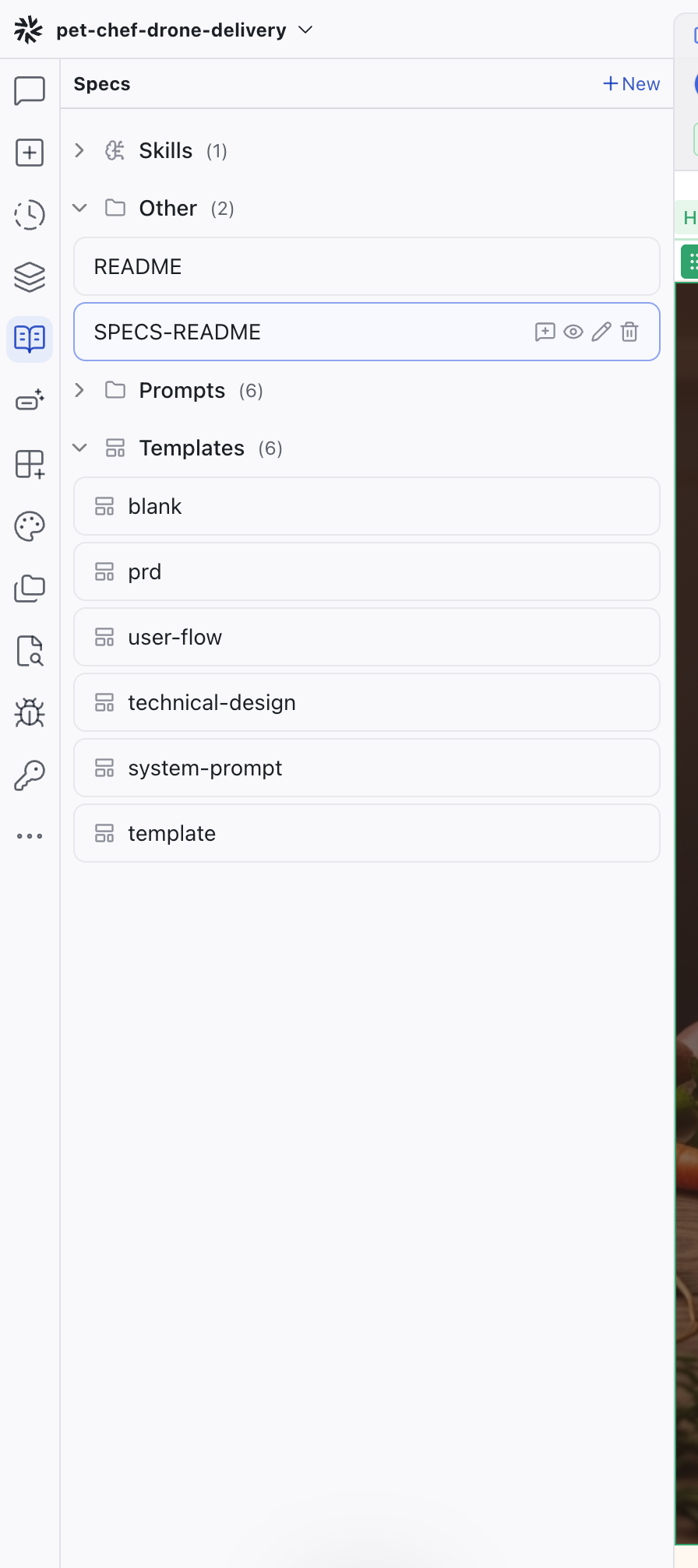
Custom templates appear in the + New menu alongside the built-in options. Each template can belong to a group that defines shared defaults for that document type: display name, icon, default filename, folder, and file extension. This lets teams standardize document types like PRDs, bug reports, or internal instructions.
To turn an existing spec into a reusable template, use the context menu on any file in the Specs panel.
Template Editor
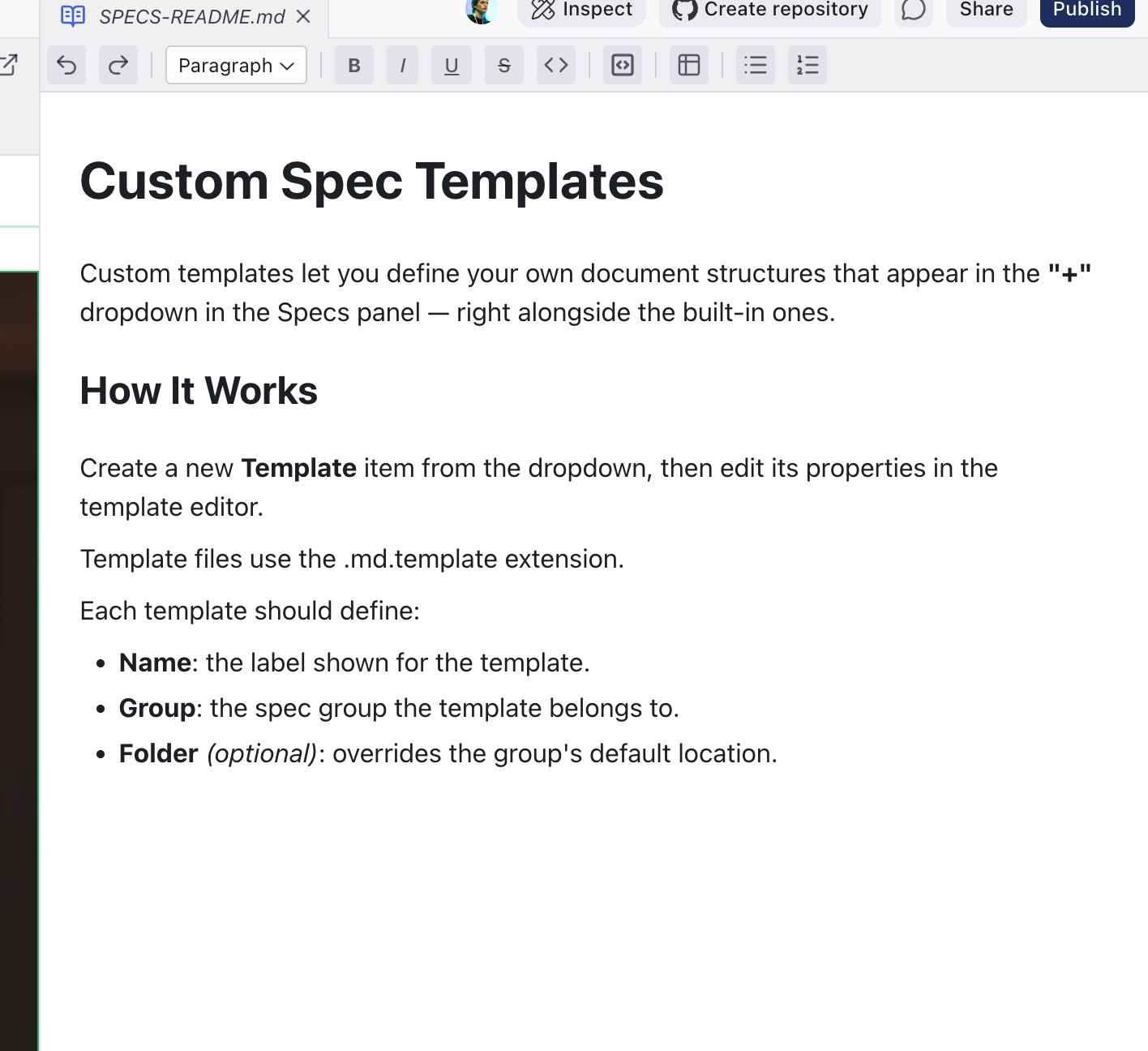
Open a template file to edit it. The template editor shows structured settings at the top (template name, group, and folder override) with the markdown body below. This replaces hand-editing raw frontmatter.
Editing Specs
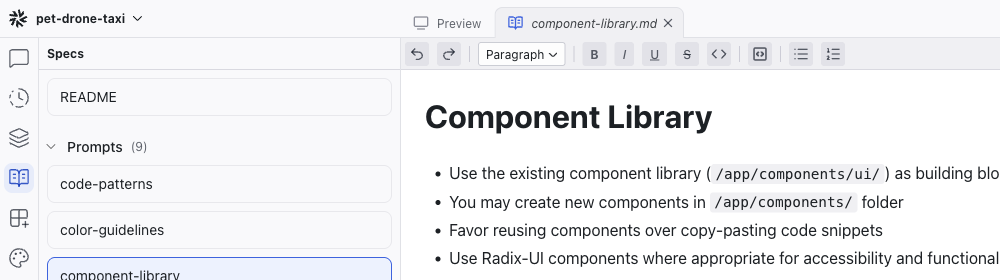
Click a spec file to open it as a tab in the center area. The editor is a WYSIWYG markdown editor with a formatting toolbar:
- Format dropdown – switch between Paragraph, Heading 1, Heading 2, Heading 3
- Text formatting – Bold, Italic, Underline, Strikethrough, Inline Code
- Blocks – Code Block, Bullet List, Numbered List
- Tables – insert and edit markdown tables
Attaching Specs to Chat
Each file in the panel has an Attach to Chat Context button. You can also drag any spec, skill, or prompt directly from the panel into the chat input to give the AI access to its contents.
Related Articles
- Skills – specialized AI knowledge files
- Writing Specs – guide to writing effective specs
- Chat-Driven Editing – how the AI uses specs
Elements
The Elements panel shows a tree view of your project's component hierarchy for the current page. Click any node to select the corresponding element on the preview.
Skills
Skills are markdown files that give the AI specialized knowledge for specific tasks. They appear in a dedicated section of the Specs panel.