
Add Panel
Browse, upload, and generate media files for your project. Attach images to chat conversations as context for the AI.
The Add Panel is a sidebar tab that shows all media files in your project — images, icons, and other visual assets. Use it to browse what's in your project, upload new files, generate images with AI, and attach media to chat conversations as context.
Media Tab
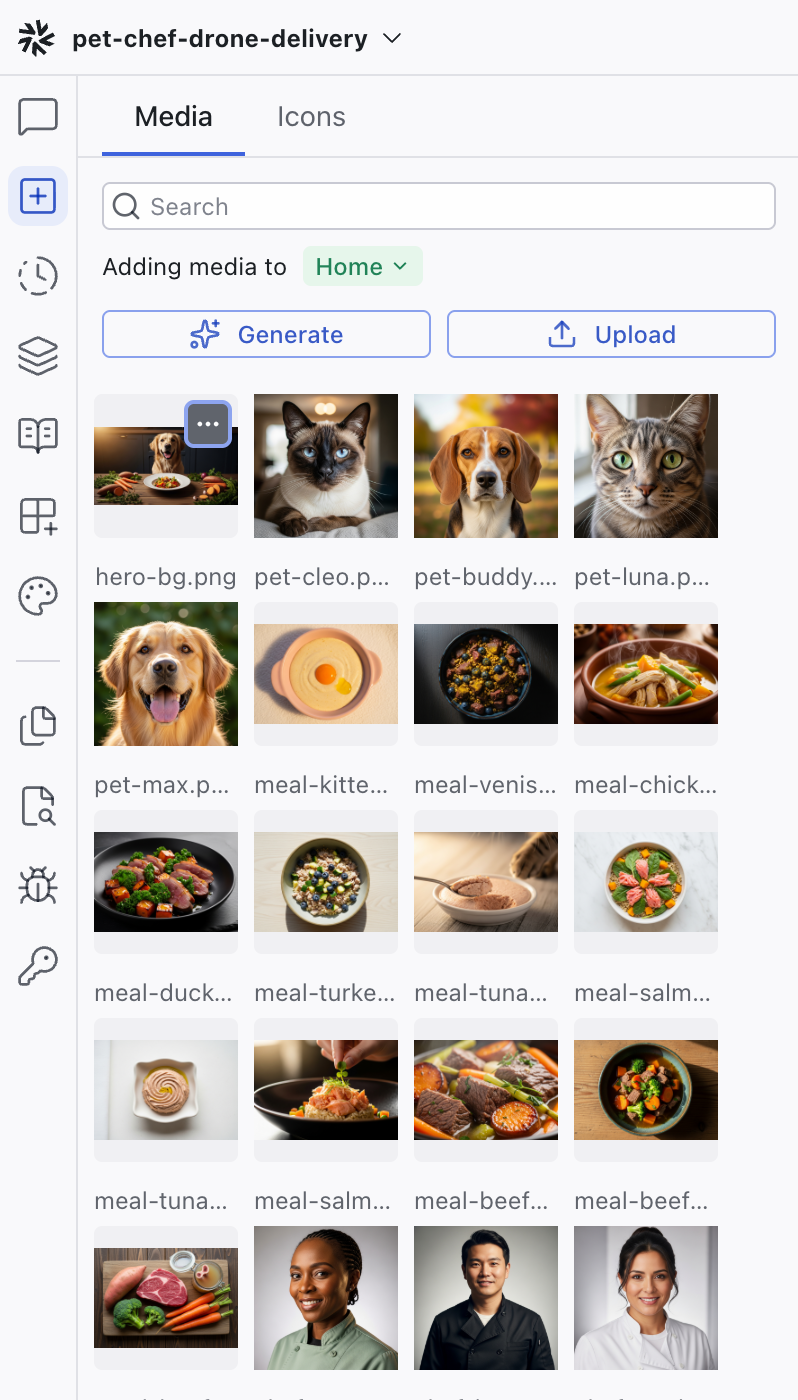
The Media tab displays a thumbnail grid of every image in your project. Each thumbnail shows the filename below it.
Drag any image from the grid directly onto the preview to place it into a component scope. If you're in Preview mode, Dazl automatically switches to Edit mode when you start dragging.
At the top of the tab:
- Search — filter media by filename
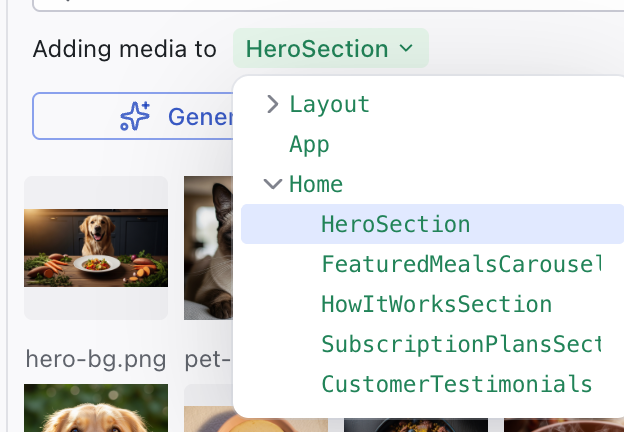
- Adding media to — a scope selector showing which component new media will be added to. Click to choose a different component on the current page.
- Generate — create a new image using AI. Opens the same generation modal as the Media panel in the Editing Toolbar.
- Upload — add an image from your computer
Icons Tab
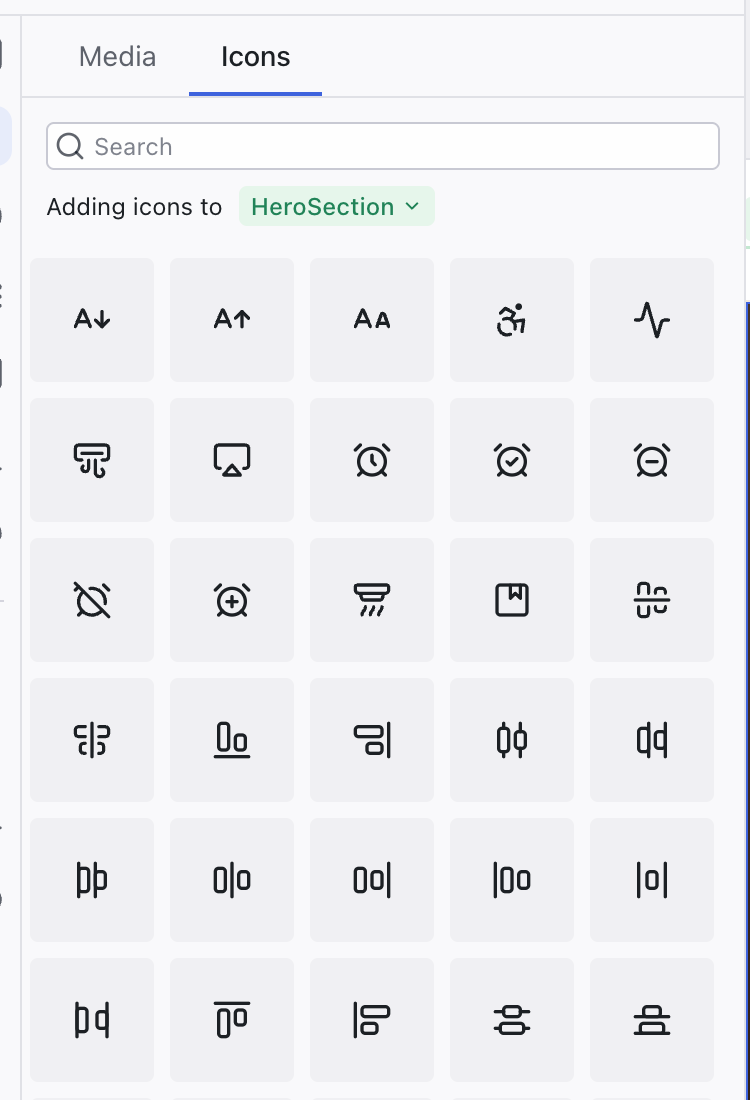
The Icons tab lets you browse and search icons. Select an icon or drag it onto the preview to add it to a component.
Attaching Media to Chat
Hover over any media item and click the menu button to see options:
- Attach to Chat Context — adds the image as context for the AI, so it can reference it when making changes
- Delete — removes the file from your project
This is useful when you want the AI to use an existing image as a reference — for example, asking it to apply a similar style to another section, or to replace an image elsewhere in the project.
Related Articles
- Media – the Media panel in the Editing Toolbar for replacing images on selected elements
- Chat-Driven Editing – giving the AI context for better results