
Comments
Leave feedback on specific pages in your project. Collaborators can reply, discuss, and resolve comments in a threaded panel.
The Comments panel lets you and your collaborators leave feedback on specific pages in your project. Each comment is tied to the page you're viewing when you write it, making it straightforward to discuss what needs to change and where.
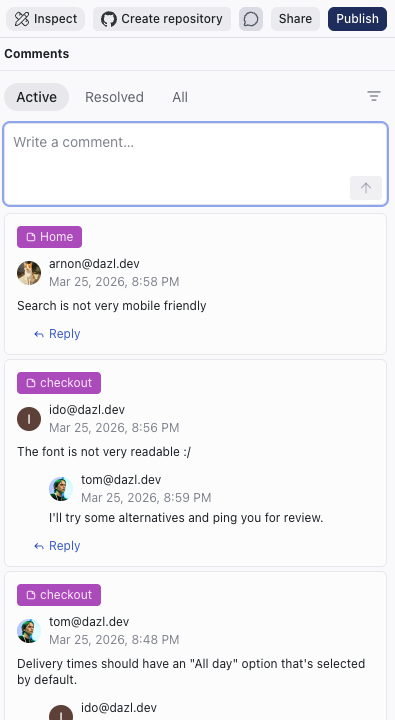
Opening the Comments Panel
Click the Comments button (speech bubble icon) in the top-right area of the top bar. The panel opens on the right side of the editor, alongside the preview.

Leaving a Comment
- Navigate to the page you want to comment on using the Pages dropdown
- Open the Comments panel
- Type your feedback in the "Write a comment..." input at the top
- Click the send button
The comment is tagged with the current page name (e.g., "checkout", "Home") so collaborators know which page it refers to.
Replies and Threads
Each comment has a Reply button. Click it to add a response, creating a threaded conversation. Multiple collaborators can participate in the same thread, keeping related discussion together.
Editing Comments
You can edit your own comments and replies after posting. Hover over a comment you authored to reveal the edit action.
Filtering Comments
Three tabs at the top of the panel control which comments are visible:
- Active — comments that are still open
- Resolved — comments that have been marked as resolved
- All — every comment regardless of status
Related Articles
- Collaboration – inviting team members and working together
- Working Together – collaboration patterns in your workflow