
GitHub
Connect your Dazl project to a GitHub repository to push and pull commits, giving your engineering team a direct path to the source code.
The GitHub button in the top-right corner of the top bar connects your project to a repository. Once linked, you can push and pull commits without leaving the editor — the most direct way to hand off working code to your engineering team.
Connecting to GitHub
There are two ways to connect:
- Click the GitHub button in the top-right corner of the top bar
- Click the GitHub Connect link in the History panel header
Both prompt you to sign in with your GitHub account. Once authenticated, a Create repository button appears in the top bar. Click it to open the Create Repository dialog.
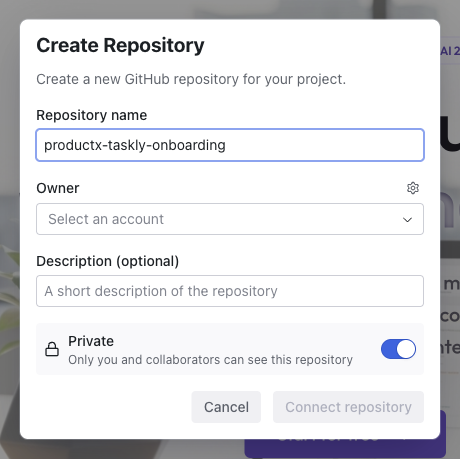
Fill in the details:
- Repository name — defaults to your project name. Only letters, numbers, hyphens, underscores, and dots are allowed.
- Owner — select the GitHub account or organization that will own the repo.
- Description (optional) — a short summary of the repository.
- Private — toggle on to keep the repo visible only to you and collaborators. On by default.
Click Connect repository to create the repo and link it to your project. Once connected, the button in the top bar changes to a Sync button for pushing and pulling.
You need a GitHub account to use this feature. If you don't have one, create one at github.com.
Pushing Commits
After connecting, click the GitHub button in the top bar to push your latest changes as a commit. Each push sends the current state of your project to the connected repository.
This is the most direct handoff option. Your engineering team works from the same repo and can pick up exactly where you left off. The code is readable, structured, and uses standard web technologies.
Pulling Changes
If changes have been made to the repo outside of Dazl, click the GitHub button and pull to bring them into your project. This keeps the Dazl project in sync with work happening elsewhere.
Working with External Tools
Once your project is connected to a repo, anyone on the team can clone it and work with their preferred tools — a local IDE, Claude Code, Cursor, or any other development environment. Push changes from those tools, then pull them back into Dazl to continue iterating visually.
This makes GitHub the bridge between Dazl's visual, AI-assisted workflow and the broader development toolchain your team already uses. For real-time collaboration inside the Dazl editor, see Collaboration.
When to Use GitHub
GitHub is best suited for teams where:
- Engineering works from the same codebase the prototype was built in
- The team wants a shared repository as the single source of truth
- Team members want to use their own editors or AI coding tools alongside Dazl
- You need version-controlled handoff rather than a file download or published URL
For other handoff approaches (sharing a published URL, exporting specs, or downloading the project), see Handing Off to Developers.
Related Articles
- Handing Off to Developers – all handoff options compared
- History – the revision timeline where GitHub Connect also appears
- Publishing – share a live URL for demos and validation
Publishing
Publish your project to a live URL that anyone can visit, and optionally connect a custom domain for a polished presentation.
Media
The Media panel is part of the Editing Toolbar and opens when you select an image element (or double-click one). It lets you browse, replace, upload, and generate images for your project.