
Collaboration
Invite team members to work on a project together. Collaborators can edit, chat with the AI, and see who else is online in real time.
Invite team members to work on a project together. Collaborators can edit, chat with the AI, and see who else is online in real time.
Inviting Collaborators
Click Share in the top-right corner of the Top bar to open the Share dialog.
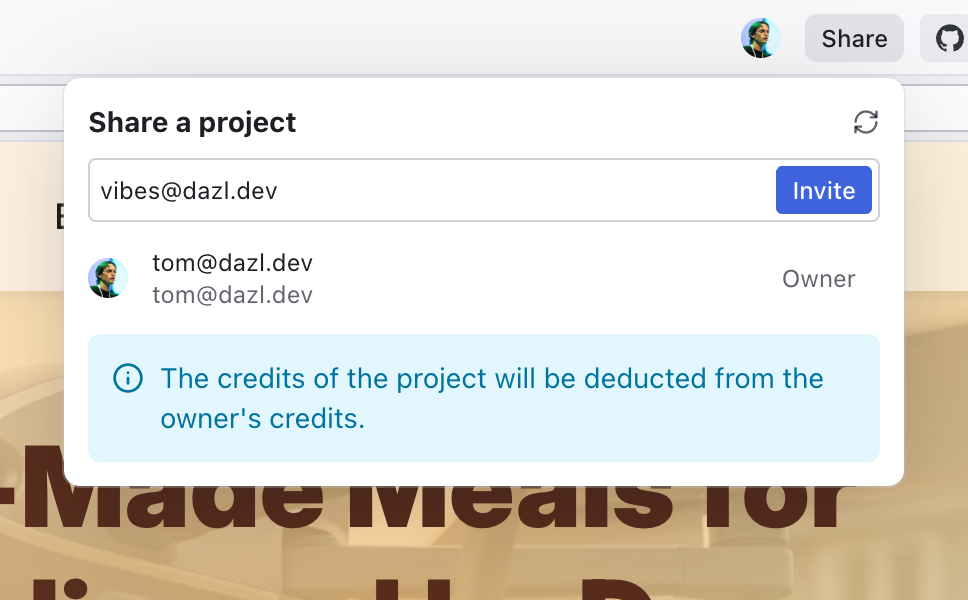
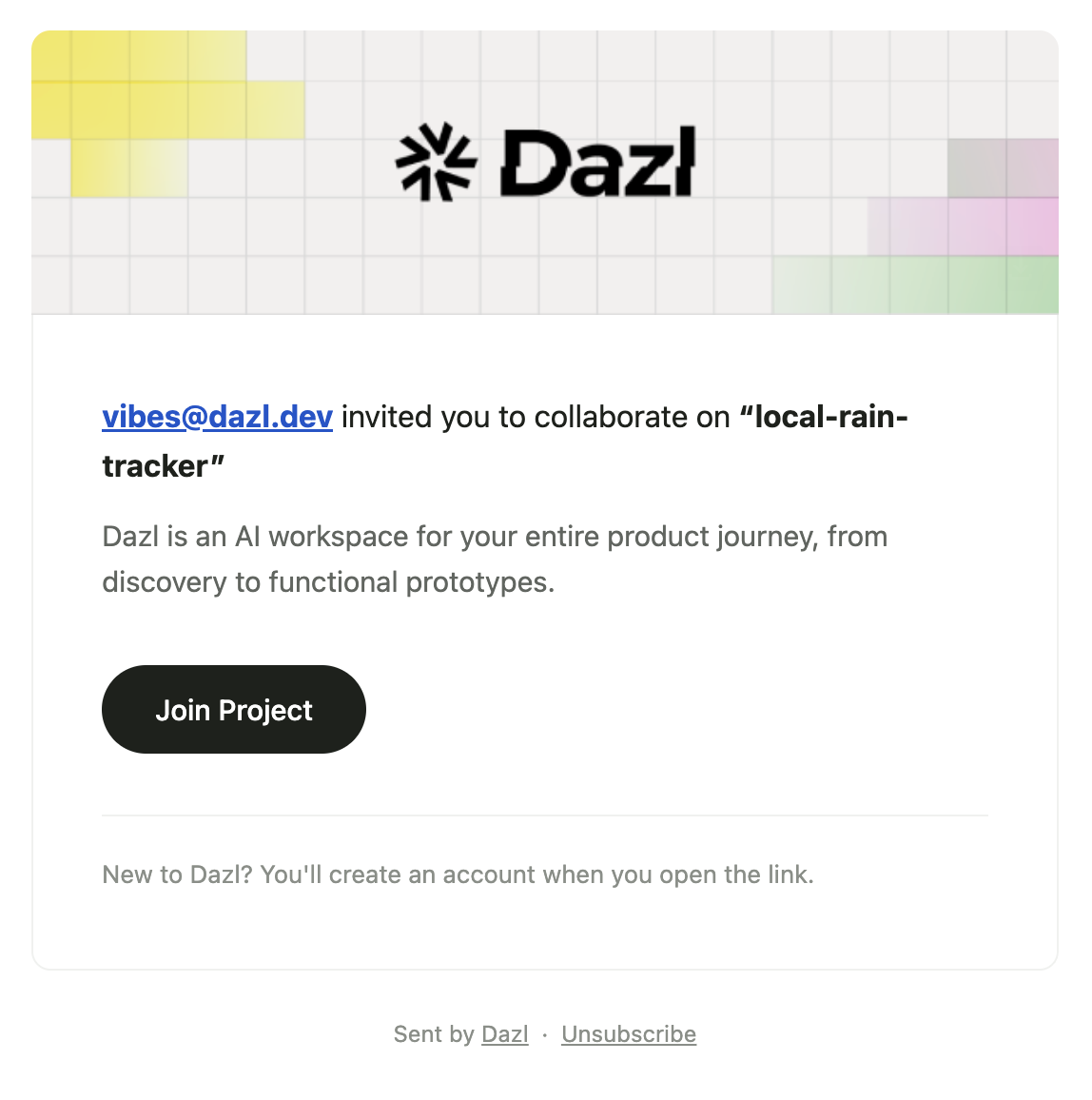
Enter the person's email address and click Invite. They receive an email notification with a Join Project button that opens the project directly. If the invitee doesn't have a Dazl account yet, they can create one when they open the link.
The Share dialog lists everyone who has access to the project, with the project creator marked as Owner.
Online Members
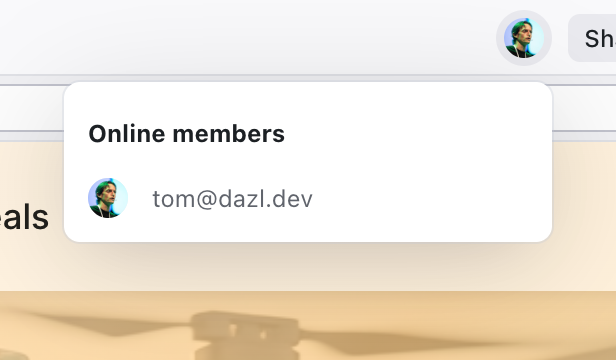
The Online members button in the top bar shows which collaborators are currently connected to the project. Click it to see a list of online users with their avatar and email.
When multiple people are working on the same project, each person has full access to the editor — visual editing, Chat, code, specs, and all other features.
When a collaborator is typing in the Chat panel, a typing indicator shows their name so you know a message is on the way.
Use the Comments panel to leave feedback and discuss changes with your team. See Comments for details.
How Credits Work
AI operations in a shared project are deducted from the owner's credits, regardless of which collaborator triggers them. The Share dialog displays a reminder of this.
Collaboration is scoped to individual projects. Invite the people you want to work with on each project separately.
Related Articles
- Comments – leave feedback and discuss changes
- Publishing and Sharing – share a live URL for feedback
- Handing Off to Developers – handoff options for engineering teams
- GitHub – connect to a repo for code-level collaboration