
Files
The Files panel is a file tree explorer showing every file and folder in your project. Click any file to open it as a tab in the center area's code editor.
The Files panel is a file tree explorer showing every file and folder in your project. Click any file to open it as a tab in the center area's code editor.
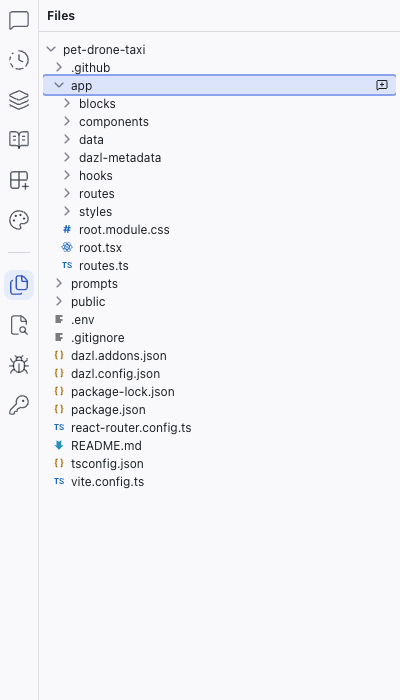
File Tree
The panel shows the full directory structure of your project. Folders appear before files, and items are sorted alphabetically. Click any file to open it in the code editor.
Uploading Files
Click Upload files in the Files panel header to add files from your computer. Uploaded files are saved to the my-files folder automatically.
Dev Files Toggle
The Dev files toggle in the Files panel header shows or hides advanced developer files (such as configuration files at the project root). These files are hidden by default.
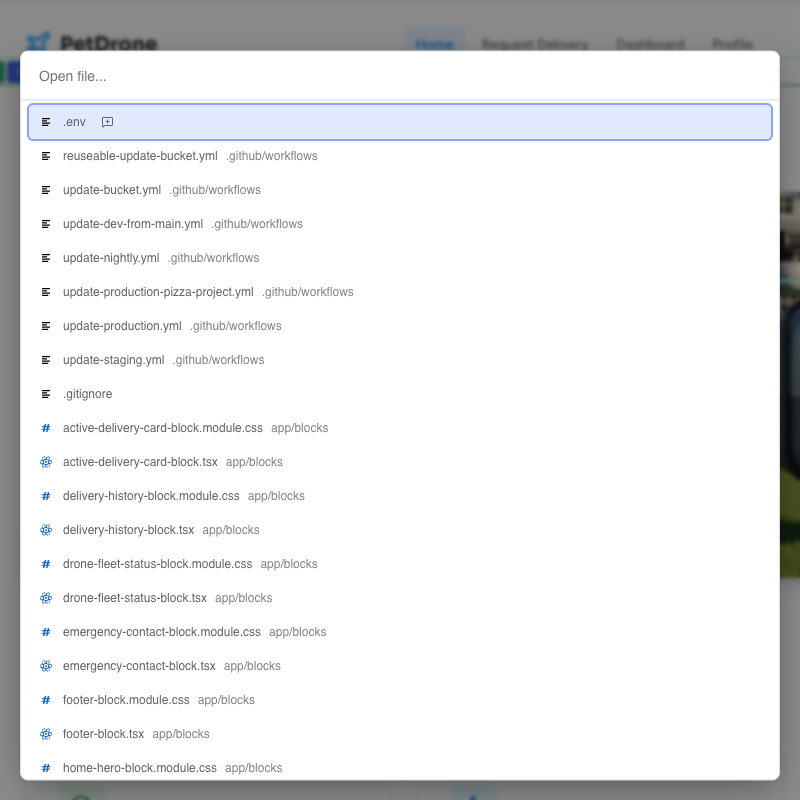
Quick Open
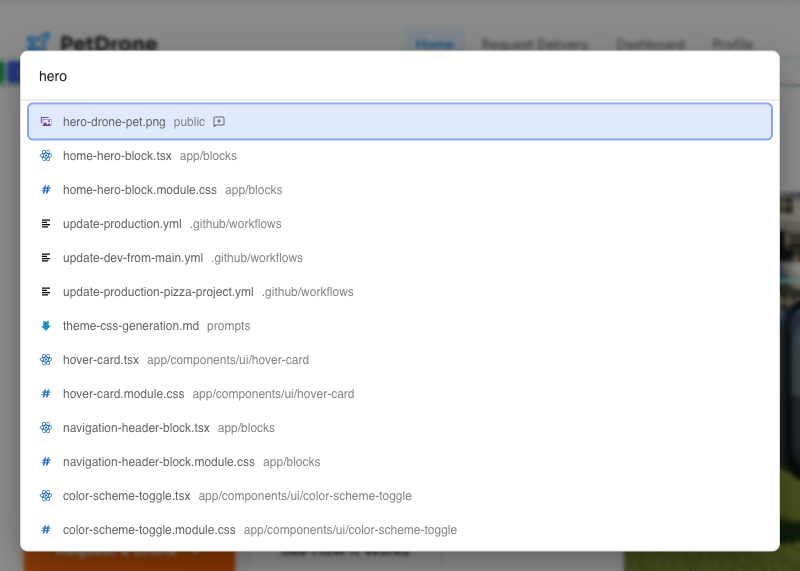
Press Cmd+P (Mac) or Ctrl+P (Windows) to open the Quick Open dialog. Start typing a filename and the list filters in real time using fuzzy matching. This is a fast way to jump to any file without browsing the tree.
Code Editor
Files open in a tabbed code editor in the center area, alongside the Preview tab. The editor includes:
- Syntax highlighting for TypeScript, CSS, JSON, and other languages
- Line numbers in the left gutter
- Code folding to collapse and expand blocks
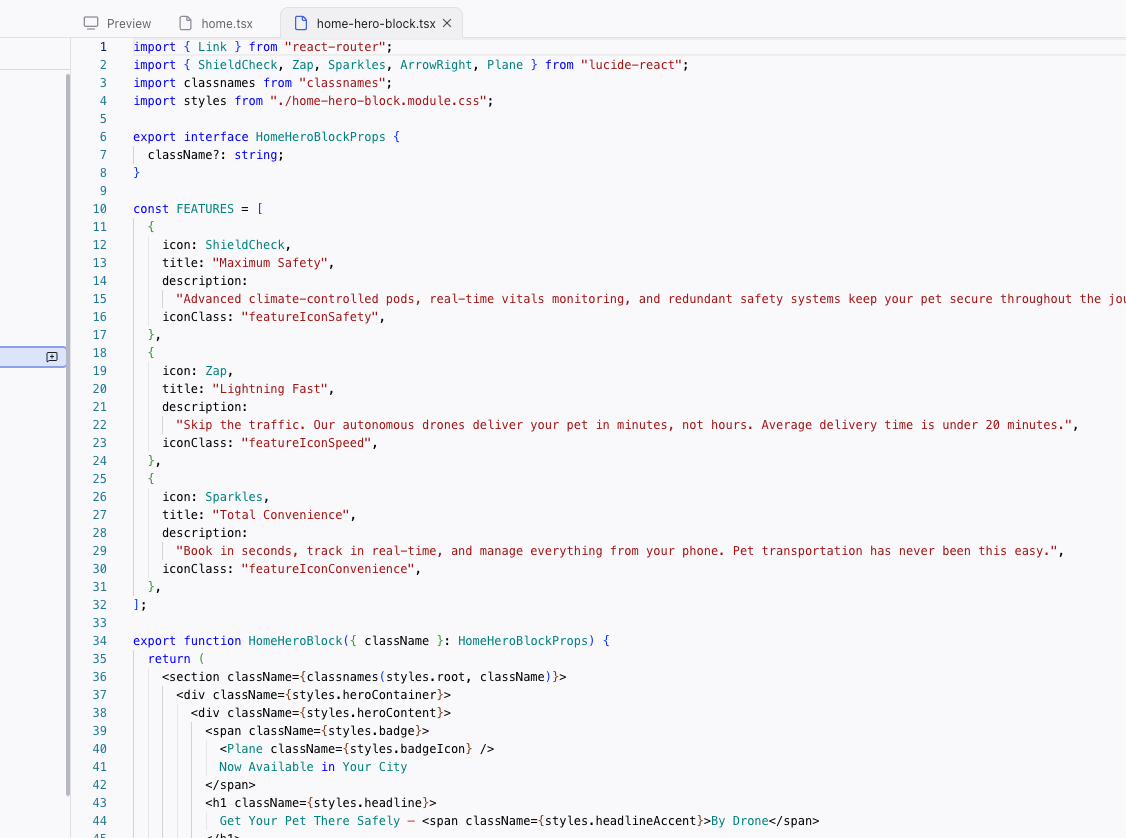
You can edit code directly in the editor. Changes are saved automatically and reflected in the preview.
Tabbed Editing
The center area works like a tabbed editor. You can have multiple files and the Preview open as tabs simultaneously.
Tabs follow a dynamic-until-pinned system:
- Opening a file replaces the current unpinned tab (shown in italic text)
- Double-click a tab to pin it (it switches to normal text and stays open)
- Making an edit to a file automatically pins its tab
Related Articles
- Working with Code – guide to browsing and editing code
- Search – search across file contents
Component Page
The Component page displays your project's entire design system as a live gallery of components, so you can browse and edit them in one place.
Search
The Search panel lets you search for text across all files in your project. Type a query in the search box and results appear instantly, grouped by file.