
Skills
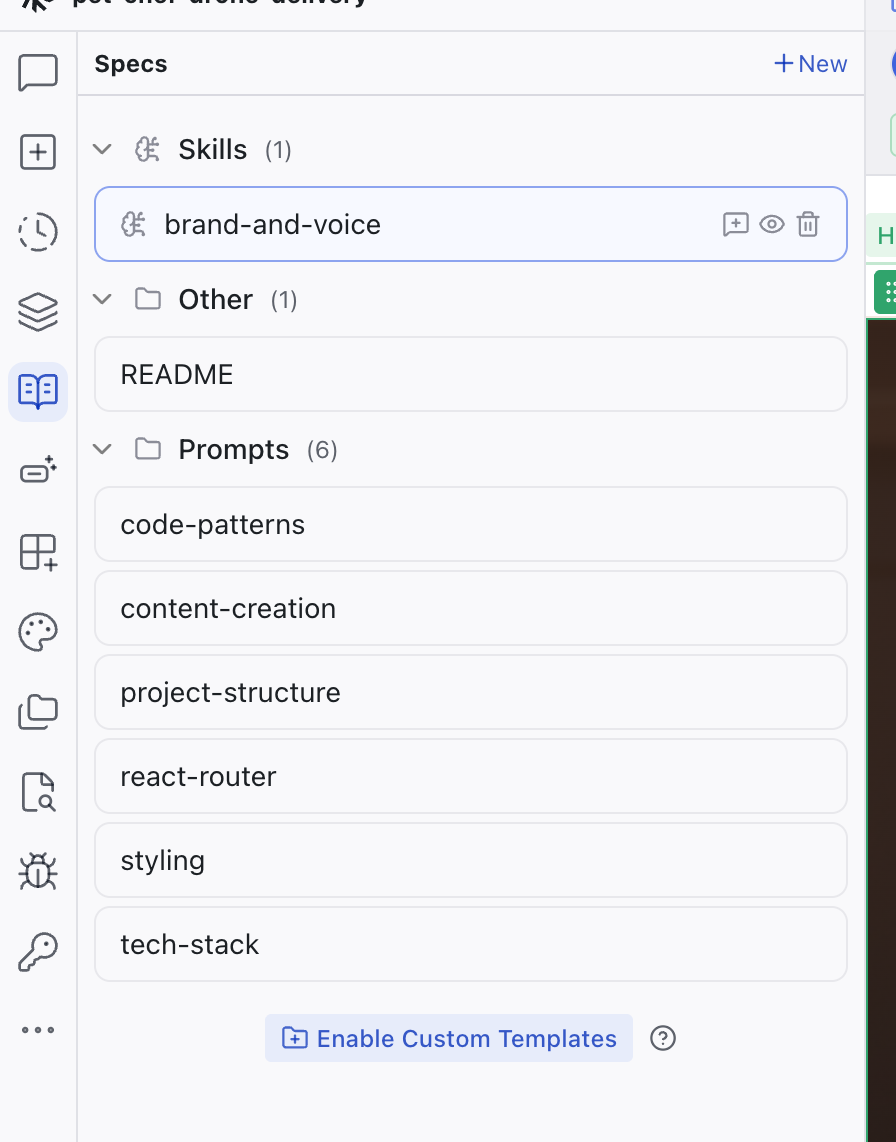
Skills are markdown files that give the AI specialized knowledge for specific tasks. They appear in a dedicated section of the Specs panel.
Unlike system prompts (which define general behavior) or spec documents (which describe what you're building), skills focus the AI on a particular domain: brand voice, accessibility standards, copy guidelines, or any other area where you want consistent results. Each skill is a markdown file with a name, description, and content body.
Skills appear in a dedicated Skills section at the top of the Specs panel.
Creating a Skill
Click + New at the top of the Specs panel and select Create Skill. A new skill opens in the editor with two settings fields and a content area.
Editing a Skill
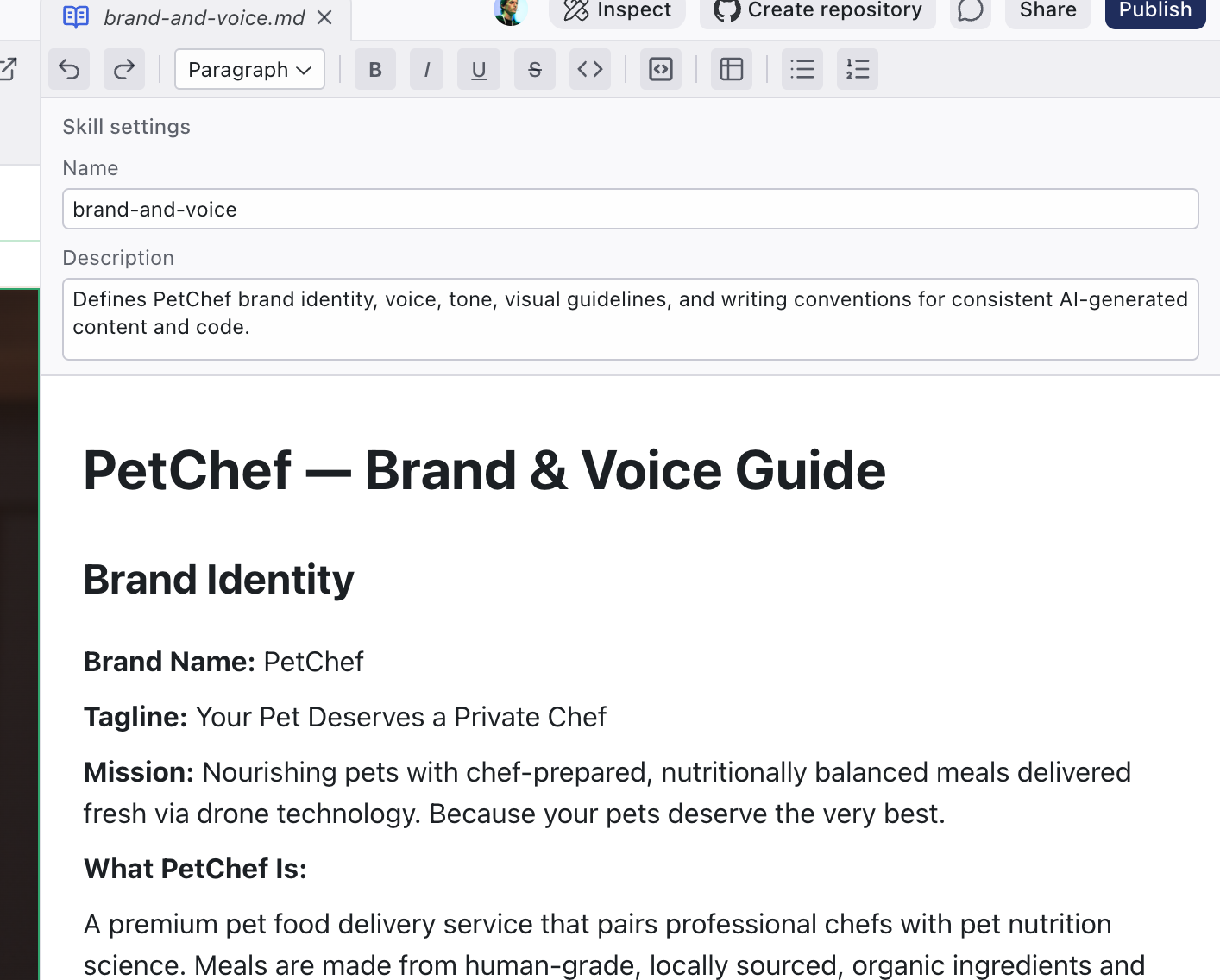
Click a skill in the panel to open it as a tab in the center area. The skill editor has three parts:
- Name — a short identifier for the skill (used as the file name)
- Description — a one-line summary of what the skill covers. The AI reads this to decide when the skill is relevant.
- Content area — a WYSIWYG markdown editor (the same one used for spec documents) where you write the skill's instructions, guidelines, or reference material
Using Skills as Context
Each skill in the panel has an Attach to Chat Context button. Click it to attach the skill to the current chat conversation, giving the AI direct access to its contents when responding to your next prompt. You can also drag a skill from the panel into the chat input.
Managing Skills
Each skill in the Skills section has controls to attach it to chat context, view its source file, or delete it.
Related Articles
- Specs — the Specs panel and its other content types
- Chat-Driven Editing — how the AI uses context when making changes
- Writing Specs — guide to writing effective specs
Specs
The Specs panel is a file browser for your project's specification files: markdown documents that guide the AI's behavior when generating and modifying code.
Integrations
The Integrations panel connects your Dazl project to external services. It has two tabs: Integrations for MCP connections to external platforms, and Add-ons for library recipes.