
Plan
Review and edit a structured project plan before the AI generates code. Define pages, sections, and features upfront.
The Plan toggle on the Dashboard prompt box lets you review and shape a structured project plan before the AI generates any code.
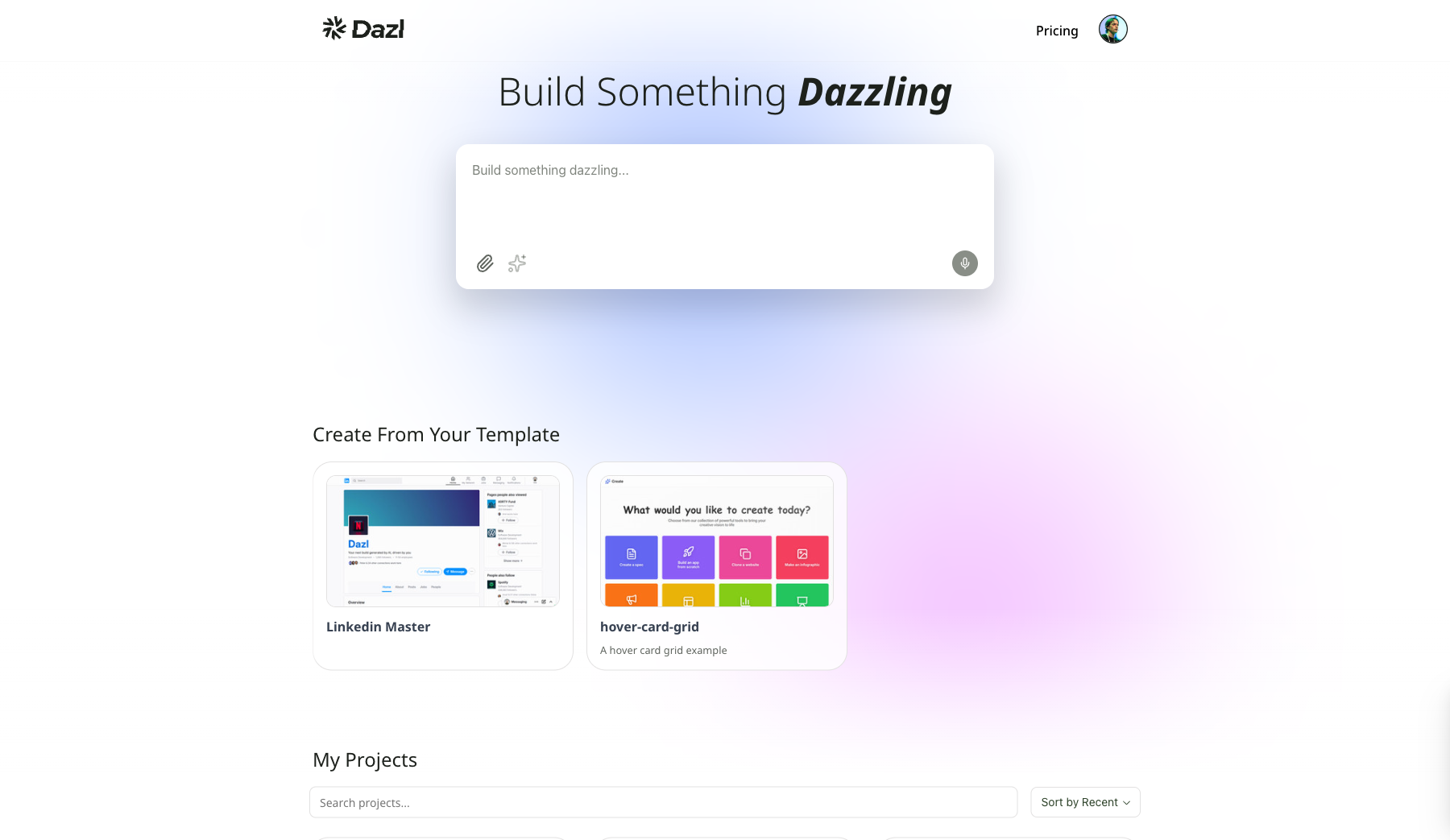
How It Works
- Enable the Plan toggle in the Dashboard prompt box
- Type your prompt and send it
- The AI creates a plan and opens it in a dedicated Plan tab in the center area
- Edit the plan until you're satisfied, then click Build
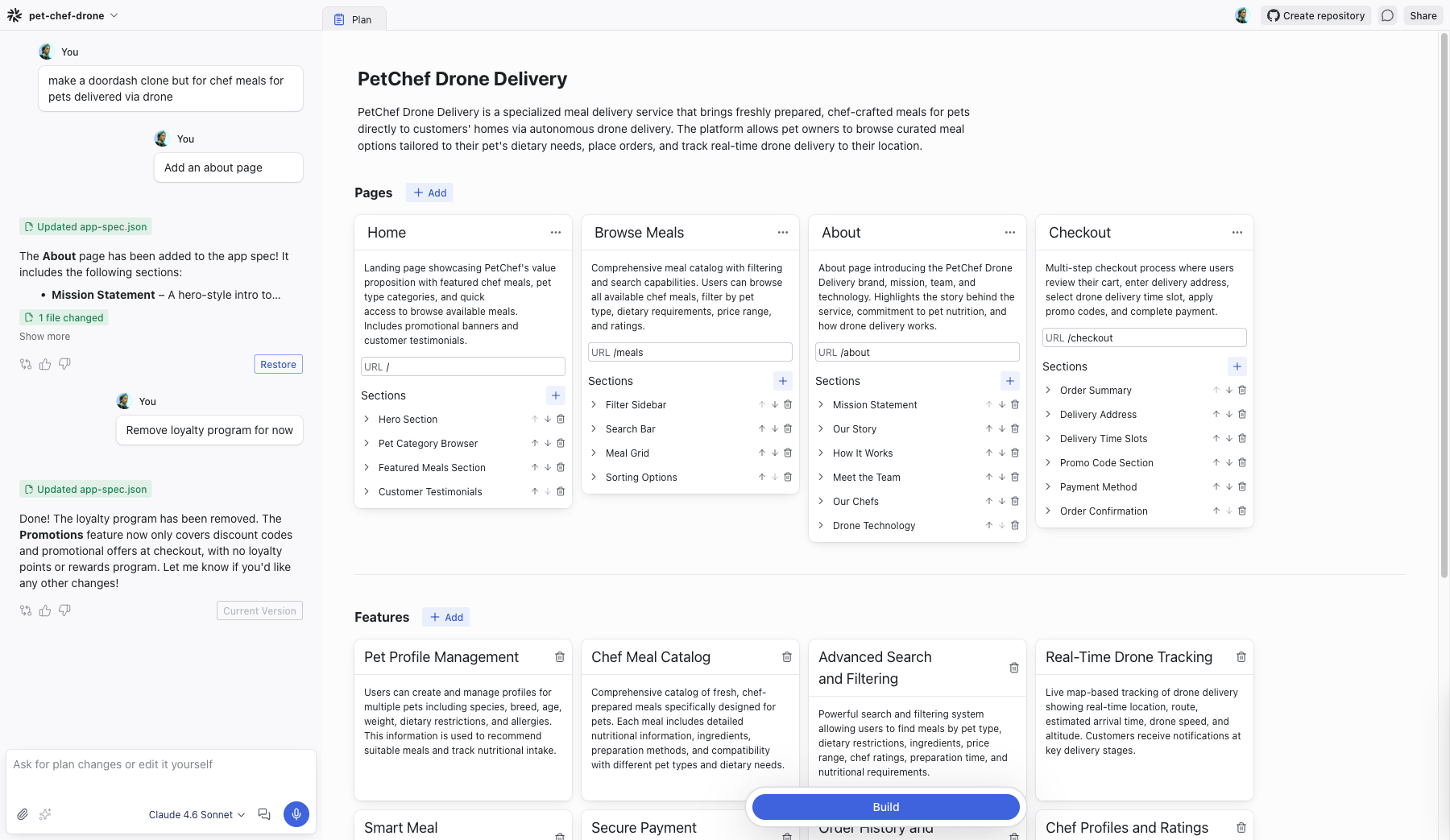
Plan Structure
A plan includes three parts:
Pages
Each page has:
- Title — the page name (e.g., "Home", "About Us")
- Description — what the page covers and its purpose
- URL — the route for the page
- Sections — the building blocks of the page, listed in order
You can add, remove, and reorder sections within each page. Click + Add to create additional pages.
Features
Feature cards describe the key capabilities of the project. Each card has a title and description. You can add, remove, or edit features to match what you're building.
Theme Guidelines
Design direction for the AI to follow when generating the project — visual tone, color direction, and typography guidance.
Editing the Plan
Every part of the plan is directly editable. Click any title or description to rewrite it. Use the arrow buttons to reorder sections, and the delete button to remove items you don't need.
You can also use the Chat to ask the AI for changes. The prompt box shows "Ask for plan changes or edit it yourself" while in plan mode. For example, ask the AI to add a new page, restructure sections, or change the design direction.
Validation
The plan is validated before building. If there are errors — such as missing descriptions or invalid configurations — they are highlighted by section so you can find and fix them. The Build button is disabled until all errors are resolved.
Building
When the plan looks right, click Build to generate the project. The AI uses the plan as a specification, creating pages, components, and styling that match what you defined.
Related Articles
- Starting a Project – all the ways to begin a new project
- Writing Specs – guide the AI with structured specifications
- Chat – the AI conversation panel
The Editor Layout
The Editor is the workspace where you build, edit, and inspect your project. It opens when you click a project from the Dashboard.
Visual Editing
Visual editing lets you select and modify elements directly on the live preview — no prompts, no code, no credits. Use the Edit / Preview toggle in the top bar to switch between modes.