
Writing Documents
The Documents panel is where you define how your project should be built. It brings together system prompts, user-written documents, and content files in one place.
Documents are where product work lives alongside the code: PRDs, user stories, technical designs, research notes, brand voice guides. They keep your team aligned and give the AI the context it needs when making changes.
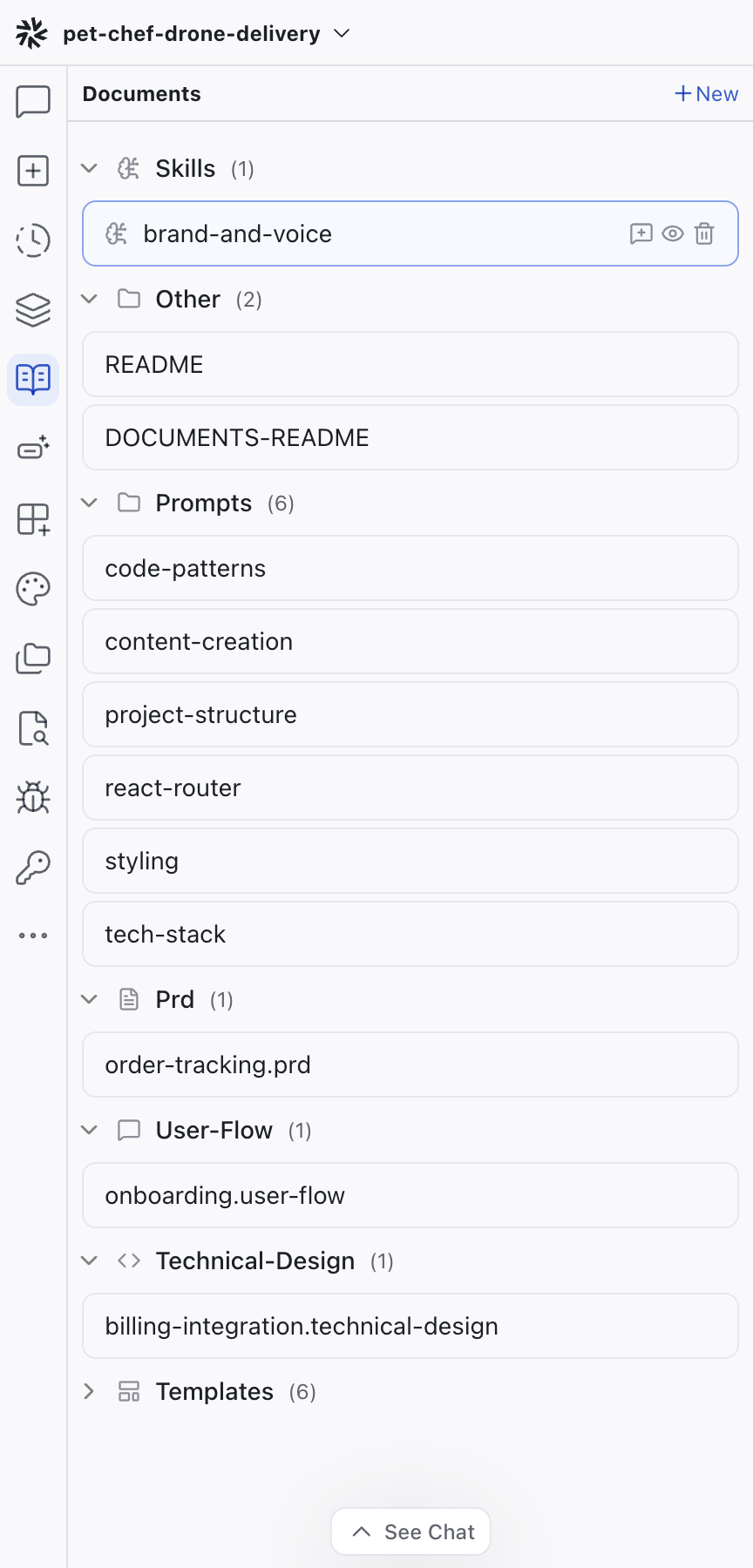
System Prompts
Every project includes a prompts folder containing system prompts that define how the AI behaves. These cover things like coding conventions, design tokens, component structure, and routing patterns. The AI reads them whenever it generates or modifies code.
These prompts are tuned to work with Dazl's architecture and toolchain. You can expand or customize them (for example, adding your own coding conventions or component patterns), but they're best treated as a foundation to build on rather than replace.
Documents
Any markdown files you create to describe what you're building also appear in the Documents panel: feature specs, design direction, technical constraints, or a project README. This makes it a convenient place to write and edit requirements, PRDs, acceptance criteria, or any context that helps the AI understand what you're building.
Skills
Skills are markdown files that focus the AI on a particular domain: brand voice, accessibility standards, copy guidelines, or coding conventions. They appear in a dedicated Skills section at the top of the Documents panel and have their own editor with Name and Description fields. See Skills for the full reference.
Content Files
Markdown files that are part of the project itself (like individual blog posts, help articles, or landing page copy) also show up here. You can write and edit them directly in the Documents panel alongside your other documents and prompts.
You can attach any file from the Documents panel as context for the chat by clicking Attach to Chat Context on the file, or by dragging it directly into the chat input.
Creating a Document
Click + New at the top of the Documents panel to create a document. You can start from a blank file or choose a built-in template: PRD, User Flow, Technical Design, or Agent Instruction. Each template provides a structured starting point so you don't have to write from scratch.
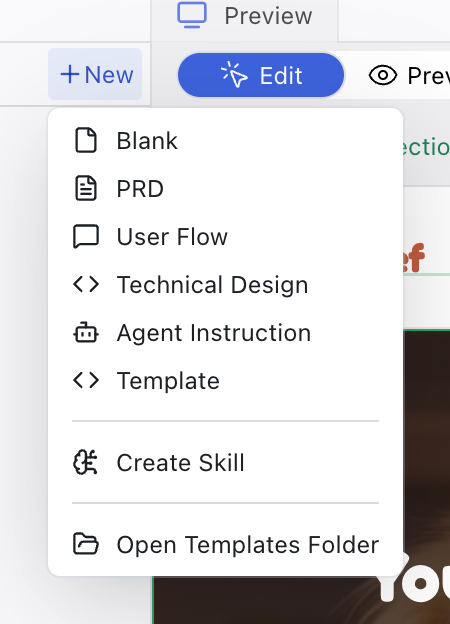
A name dialog appears so you can name the file before it opens. You can also enable custom templates to create your own reusable starting points alongside the built-in options. Templates can belong to groups that define shared defaults (icon, filename, folder, file extension), which helps teams standardize their document types. To turn an existing document into a template, use the context menu on the file in the Documents panel.
The Document Editor
Click any file in the Documents panel to open it as a tab in the center area.
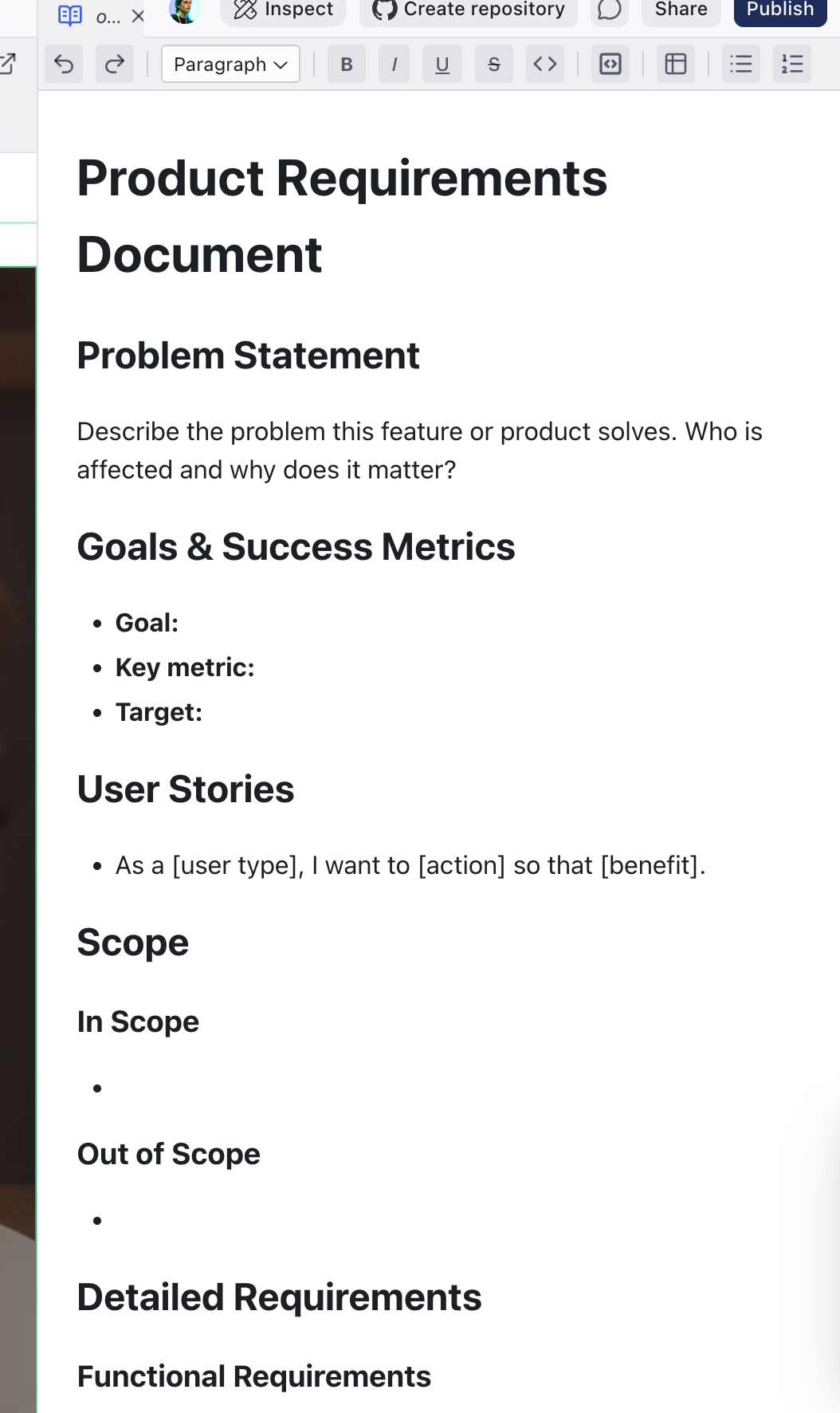
The document editor is a WYSIWYG markdown editor with a formatting toolbar that includes:
- Undo and Redo
- Format dropdown – switch between Paragraph, Heading 1, Heading 2, Heading 3
- Text formatting – Bold, Italic, Underline, Strikethrough, Inline Code
- Blocks – Code Block, Bullet List, Numbered List
- Tables – insert and edit markdown tables
You can write and edit documents visually without needing to know markdown syntax, though the underlying format is standard markdown.
Writing Your Own Documents
Some practical approaches for markdown document files:
- Feature specs – describe a feature's behavior, edge cases, and user flows
- Design direction – specify the visual tone, brand constraints, or reference styles
- Technical constraints – list technologies to use or avoid, API patterns, data structures
- Accessibility requirements – define WCAG compliance levels or specific needs
Better documents lead to better AI results. A clear spec reduces back-and-forth because the AI understands your intent from the start.
You don't need to write a 20-page PRD. A focused, 1-2 page document paired with an interactive prototype communicates more than a lengthy document ever could.
Documents as Living Reference
Documents aren't just for the AI. They serve as living reference for your team. Since these files are part of your project, every collaborator who opens it can see the thinking behind the decisions. This makes handoff clearer and keeps the team aligned.
Related Articles
- Starting a Project – different ways to begin a project, including from documents
- Chat-Driven Editing – how the AI uses documents and context when making changes
- Documents – full reference for the Documents panel
- Skills – domain-specific AI knowledge files