
The Dashboard
The Dashboard is your home base in Dazl — where you create new projects and access existing ones.
The Dashboard is your home base in Dazl — where you create new projects and access existing ones.
Creating a New Project
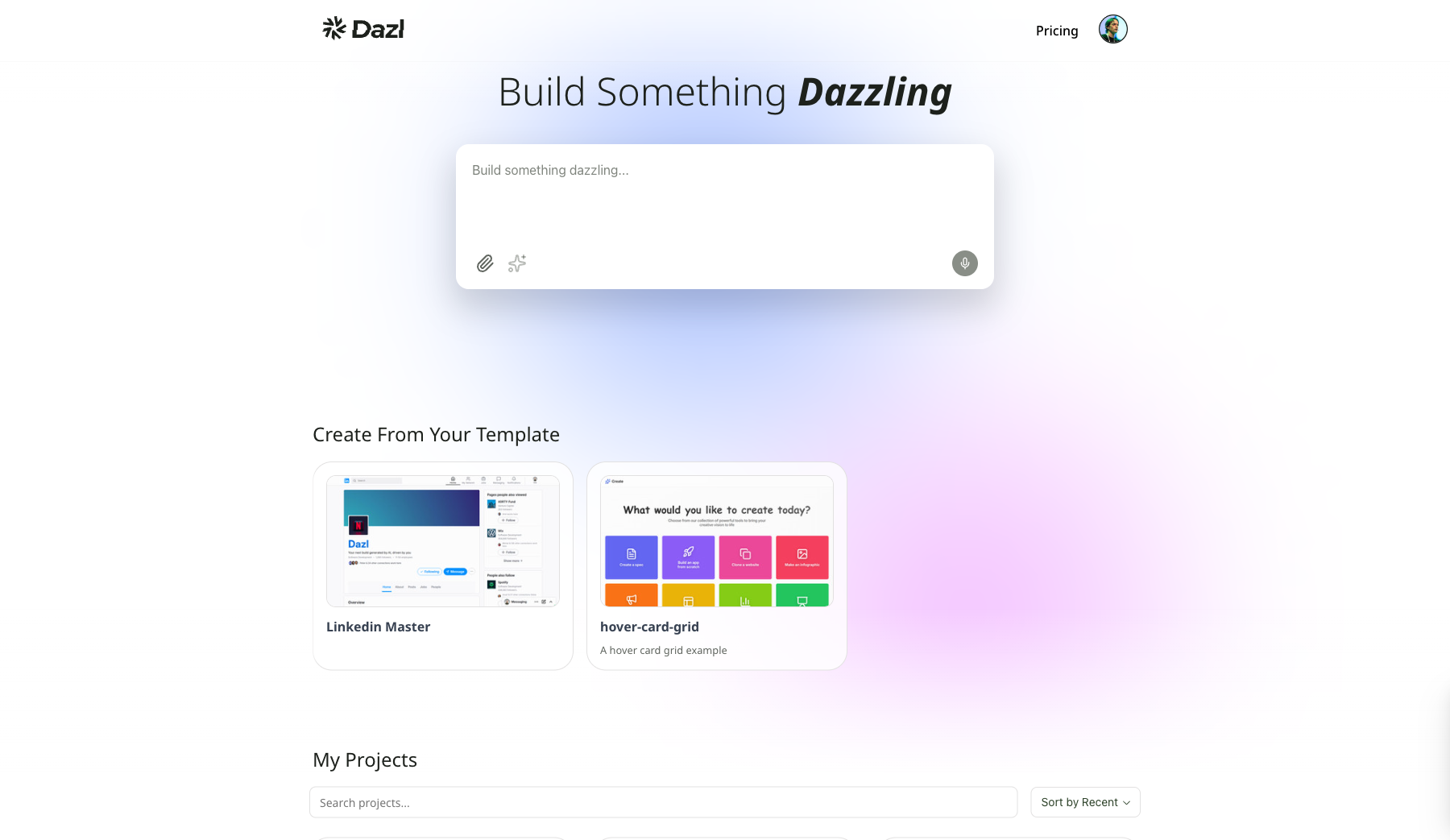
At the top of the Dashboard, you'll find the prompt box. Type a description of what you want to build and press Enter or click Send. Dazl generates a working project based on your description.
You can also attach files or images using the attachment button (paperclip icon) as design inspiration or as assets to be used in the project itself. The enhance prompt button (sparkle icon) lets the AI expand a short prompt into a more detailed specification before generating.
Enable the Plan toggle to review and edit a structured project plan before the AI generates code. See Starting a Project for details.
For other ways to start a project, like from a screenshot or written specs, see Starting a Project.
Templates
Once you've saved a project as a template (via Project menu > Save as Template inside the editor), a Templates section appears on the Dashboard between the prompt box and your projects. Click any template to create a new project from it.
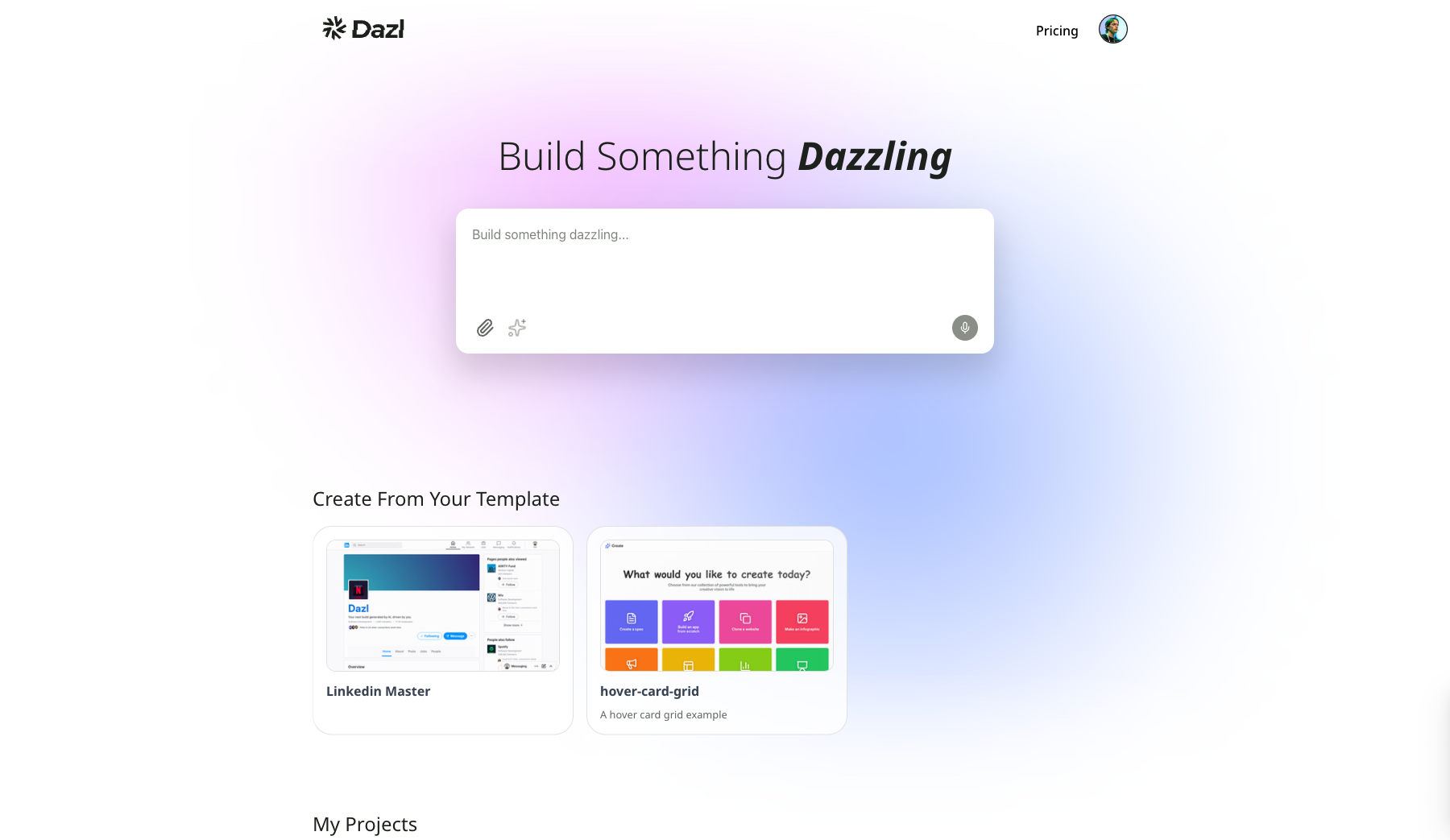
The Templates section only appears after you've created your first template.
My Projects
The My Projects section displays all your existing projects as a grid of cards.
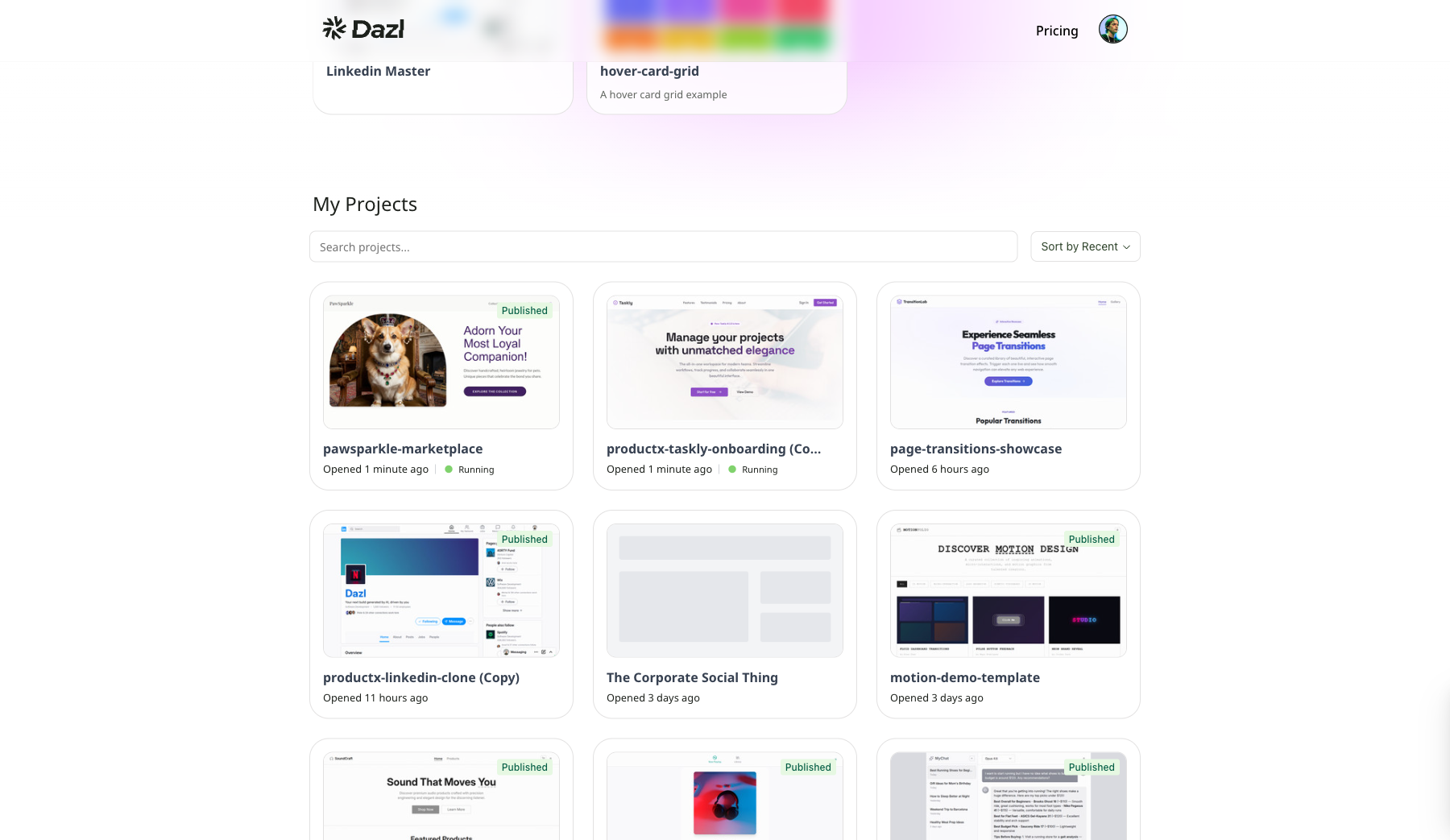
Each project card shows:
- Preview thumbnail — a screenshot of the project's home page
- Project name — click the card to open it in the editor
- Timestamp — when you last opened the project (e.g., "Opened last week")
- Published badge — a green "Published" label if the project has been published
- Running status — a green "Running" indicator if the project's server is active
- Team member avatars — profile pictures of collaborators on the project
- Options menu — the three-dot button on each card for additional actions
Searching and Sorting
Use the Search projects text field above the grid to filter projects by name. The Sort by Recent dropdown lets you change how projects are ordered.
Concurrent Projects
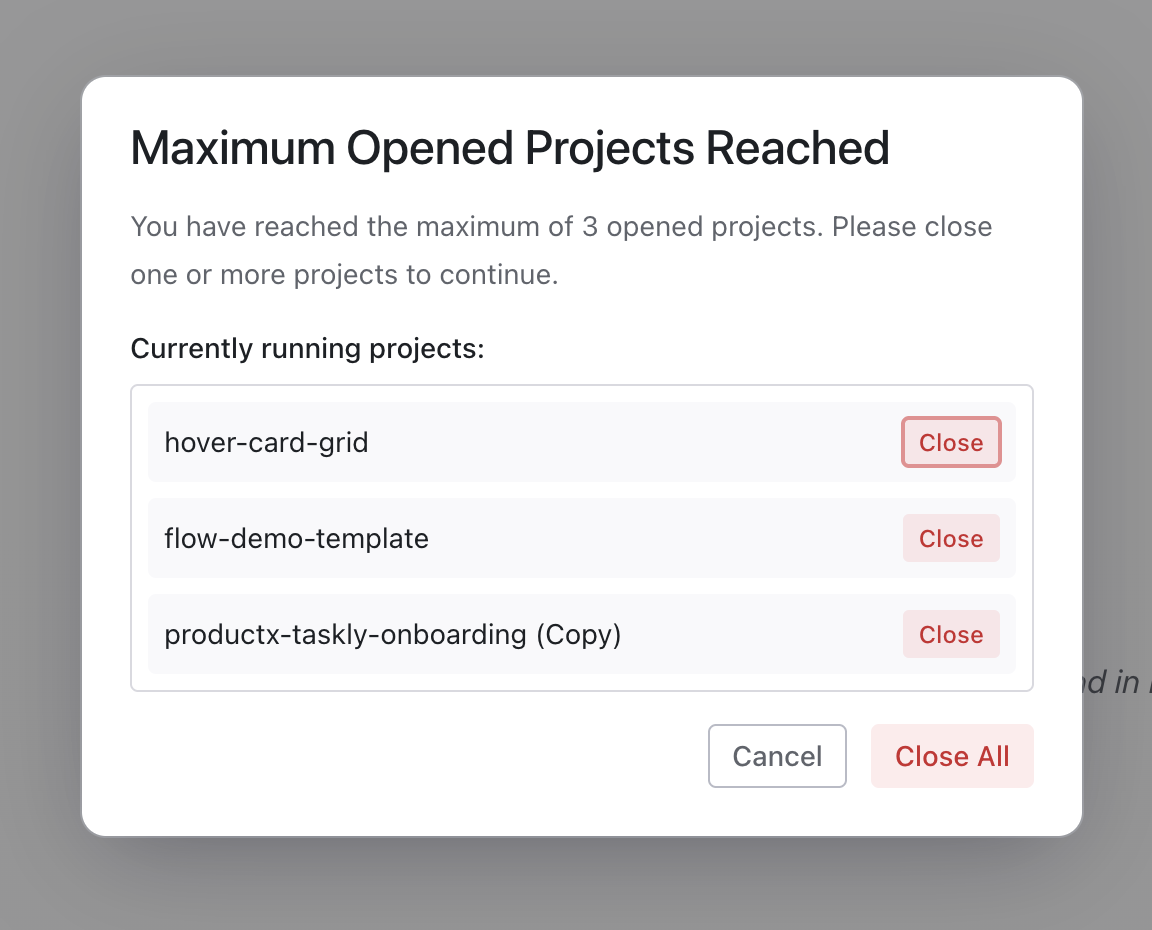
You can run up to 3 projects at the same time. If you try to open a 4th, Dazl prompts you to choose which running project to close before continuing.
User Menu
Click your avatar in the top-right corner to open the user menu, which shows:
- Your current plan (e.g., "Free Product") and email
- Balance — remaining credits
- Upgrade — link to the pricing page
- Manage Billing — payment and invoice management
- Contact Us — reach the Dazl team
- Sign Out — log out
Related Articles
- Your First Project – walk through creating and editing your first project
- Starting a Project – all the ways to begin a new project